 Voxel3D
VOXEL3D / 3D tools
STL to OBJ Converter
Convert a binary or ASCII STL mesh into a Wavefront OBJ file.
No sign-in neededOnly mesh geometry is retained. Textures, colors, animations and materials are not exported. Conversion does not repair holes or make a model printable.
When an STL to OBJ conversion is useful
STL to OBJ is a format handoff, not a reconstruction process. Use it when the next application expects a Wavefront mesh, when a collaborator asks specifically for OBJ, or when you want an inspectable text representation of a triangle model. If your slicer already accepts STL and all you need is another print, a conversion adds an unnecessary step. Keep the original STL alongside the exported OBJ so you always have a reference for dimensions and triangle count.
A common example is moving a miniature from a printing workflow into a scene editor. The original file describes surface triangles but has no dependable material assignment. Converting gives the editor another way to read those triangles; it does not create a painted character or an animation rig. Before exporting anything else, compare the silhouette, bounding dimensions and orientation with the source. This tool reports the triangle count and dimensions to make that comparison easier.
STL versus OBJ: geometry, materials and file size
Binary STL stores each triangle using a normal, three vertex positions and a small attribute field. A conventional binary STL has an 84-byte prefix and 50 bytes per triangle, so its geometry size is predictable. ASCII STL describes the same kind of surface in readable text and is usually larger. Neither form supplies a reliable standard unit declaration that every receiving application will interpret the same way.
OBJ is also a text format. It can reference positions, normals, texture coordinates and materials in a companion MTL file, but this converter only has the data found in your STL. There are no UV coordinates, texture images or material definitions to recover. A colored STL is exported here as uncolored geometry. File size may grow because numbers are written as text and this implementation does not promise vertex deduplication. A larger OBJ is not evidence of more detail; the triangle count is the useful comparison.
| Property | STL input | OBJ output |
|---|---|---|
| Encoding | Binary or ASCII | Text |
| Geometry | Triangle surface | Same triangle surface |
| Materials | No dependable material workflow | Not recovered |
| Units | Not reliably declared | Coordinates preserved |
| Size | Binary: 84 + 50 × triangles bytes | May grow as text |
| CAD history | Not stored | Not reconstructed |
How to convert STL to OBJ in the browser
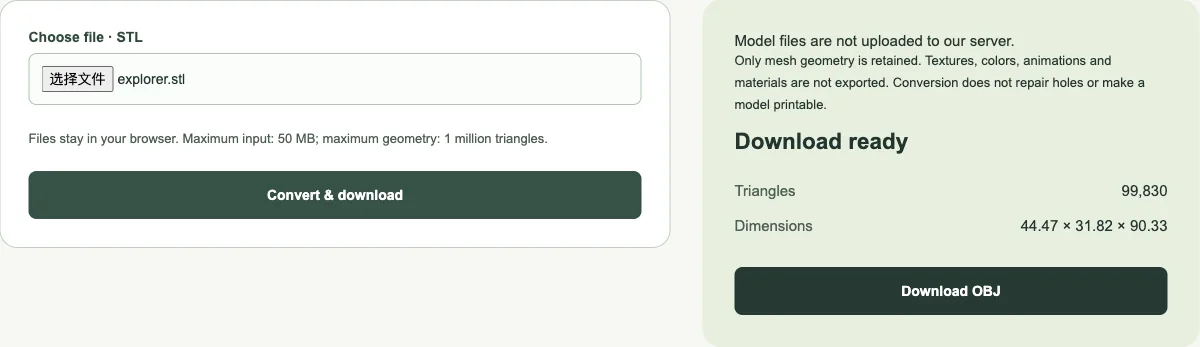
Choose a binary or ASCII file with an .stl extension, wait for the filename to appear, and run the conversion. The file is processed in a browser worker. No model-generation request is made and the file contents are not uploaded to Voxel3D. Once the result is ready, read the reported dimensions and triangle count, then use Download OBJ to save a local copy. Keep the browser tab open until you have saved the file you need.
The input limit is 50 MB and the geometry limit is one million triangles. These are separate limits: an unusually dense binary mesh can fit within the byte limit while exceeding the triangle limit. Invalid coordinates, empty geometry and unsupported input produce an error instead of a knowingly incomplete download. If a file is too large, simplify it in a mesh editor and compare the smaller version with the original before trying again. Conversion itself is not a simplification feature.
The same STL to OBJ workflow in Blender
For a manual route, open Blender and use File > Import > STL. Select the source file and inspect the import scale and axis settings. In the viewport, check that the expected object is present and that its dimensions match your intended interpretation. If the model arrives sideways, adjust the import axes or deliberately rotate it before continuing. Do not compensate for an uncertain unit convention by guessing at several unrelated scale factors.
Select the mesh, then use File > Export > Wavefront OBJ. Review the selection-only option, export scale and axis settings in the version of Blender you use. Save the OBJ, reimport it into an empty scene, and check its dimensions again. Blender is the better route when you also need to edit topology, correct normals, separate parts or assign new materials. The browser tool is useful for the simpler case where you want a direct geometry handoff without installing a desktop editor.
Using an OBJ in Blender, Unity or Unreal workflows
Blender can edit the resulting mesh, but a triangulated model is still triangulated. Switching extensions will not restore the sketches, constraints, fillets or parametric history of a CAD original. For substantial mechanical edits, return to the source CAD project when possible. For visual edits, inspect duplicated vertices and shading before applying smoothing, subdivision or a decimation modifier. Those are editing operations and can change the shape.
For a game project, first confirm which import formats your specific engine version and pipeline support. Unity documents exported model workflows including OBJ. For Unreal or a team pipeline centered on FBX or glTF, importing the OBJ into Blender and exporting the supported delivery format may be more appropriate than expecting every engine to read STL or OBJ directly. Test one small asset before batch conversion. Materials, UV layouts, collision meshes, pivots, normals and world scale still need deliberate preparation.
STL to OBJ checks that prevent an incorrect handoff
A useful regression check is a box with known dimensions. Our converter tests use a 2 × 3 × 4 coordinate-unit box containing twelve triangles; the exported OBJ retains those dimensions and twelve faces. That is a software verification case, not a claim that a physical box was printed. For your own model, choose at least one known distance and confirm it in the receiving application instead of relying only on how large it looks on screen.
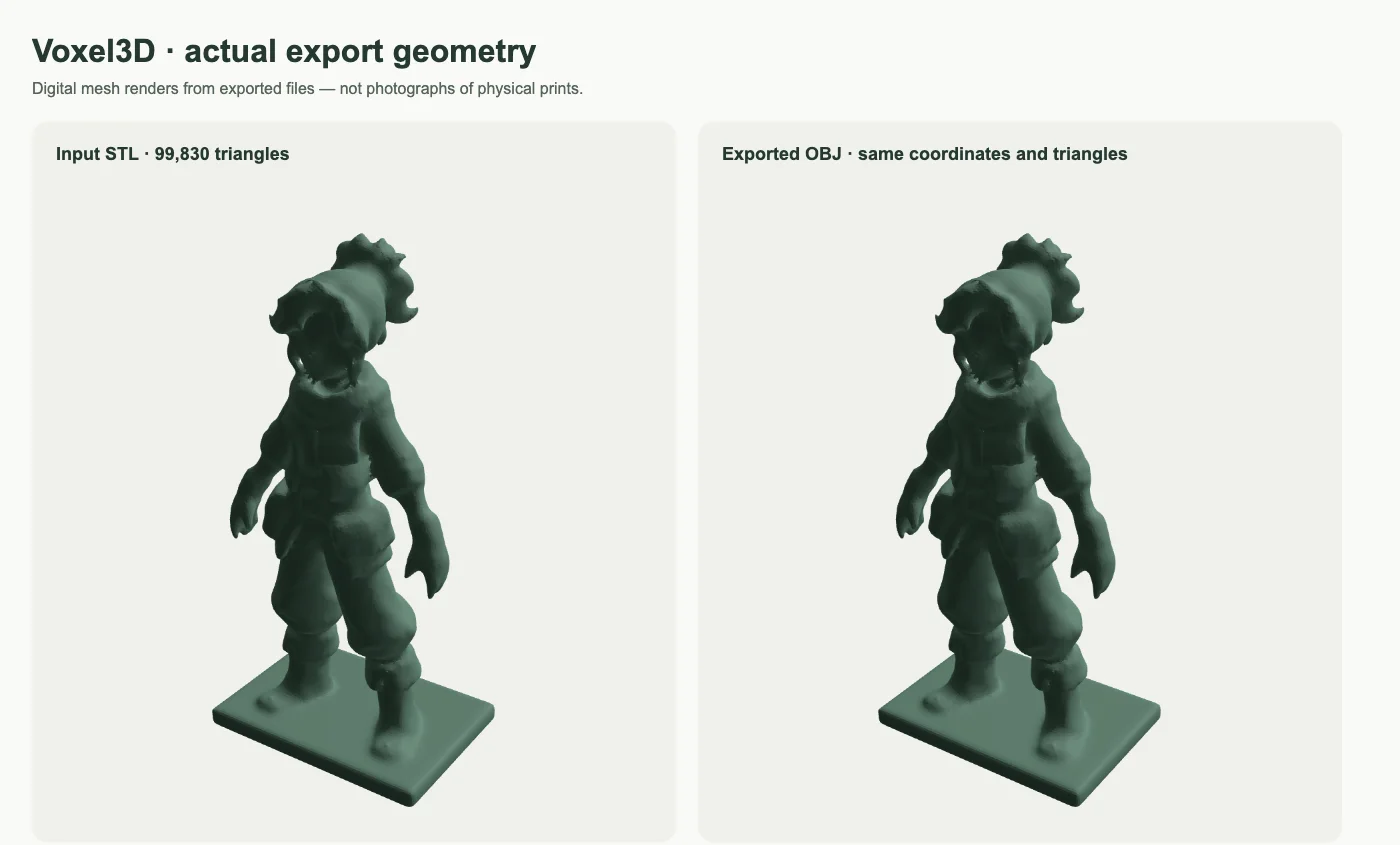
For the prepared Trail Explorer example, the browser conversion reported 99,830 triangles and an approximately 44.47 × 31.82 × 90.33 coordinate-unit bounding box. The source asset was prepared for millimetre-based printing, but an arbitrary STL does not inherit that convention. Inspect holes, disconnected shells, reversed faces and thin regions separately. This tool preserves the surface it can read; it does not certify watertightness, structural strength or suitability for a printer. Save a copy before any repair, then compare the repaired mesh with the original.
References
STL to OBJ Converter · Frequently asked questions
Can I use this without an account?
Yes. These tools run without sign-in, credit purchases or model-generation requests.
Does converting a file make it ready to print?
No. Conversion changes the file format. Inspect the mesh in a slicer and repair or add supports where necessary.